How do I reset my password?
If you've forgotten your password, ADSelfService Plus allows you to reset it securely through a self-service workflow. To protect your account, ADSelfService Plus verifies your identity using the authentication methods configured by your administrator before allowing the password reset.
Your admin decides which set of users can reset their passwords using ADSelfService Plus.
Make sure you have enrolled for the verification methods configured for your account before you attempt to reset your passwords or unlock your accounts. For details on the enrollment process, click here.
You can reset your password using any of the following methods:
- Web browser: Access the ADSelfService Plus user portal from a web browser and reset your password.
- Computer logon screen: Launch ADSelfService Plus directly from your computer's logon screen using the Reset Password / Unlock Account button and reset your password without signing in.
- Mobile device: Use the ADSelfService Plus mobile app on your Android or iOS device to reset your password.
- Enterprise applications: Reset passwords for supported enterprise applications linked to your account.
Web browser
- Access ADSelfService Plus through a web browser. Click Forgot your password?.
- Enter your Username. Select a directory from the drop-down menu. If your administrator has chosen not to display the directory field, it will not be visible to you. You can then simply continue to the next step.
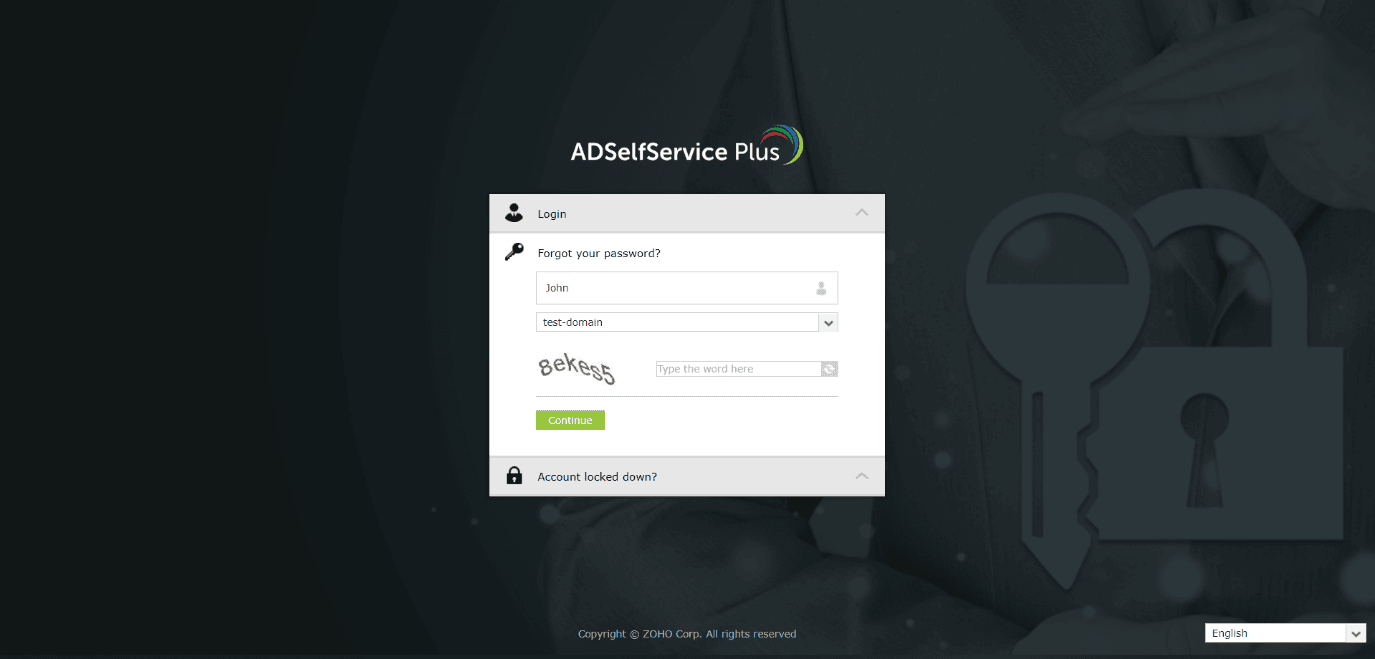
Fig 1: The web browser login page, where you select Forgot your password? and enter your username.
- In the window that opens, the list of the authentication techniques enforced by your admin will be displayed. Choose an authentication method from the list. Enter the CAPTCHA code and click Continue. For more details on verifying your identity, click here.
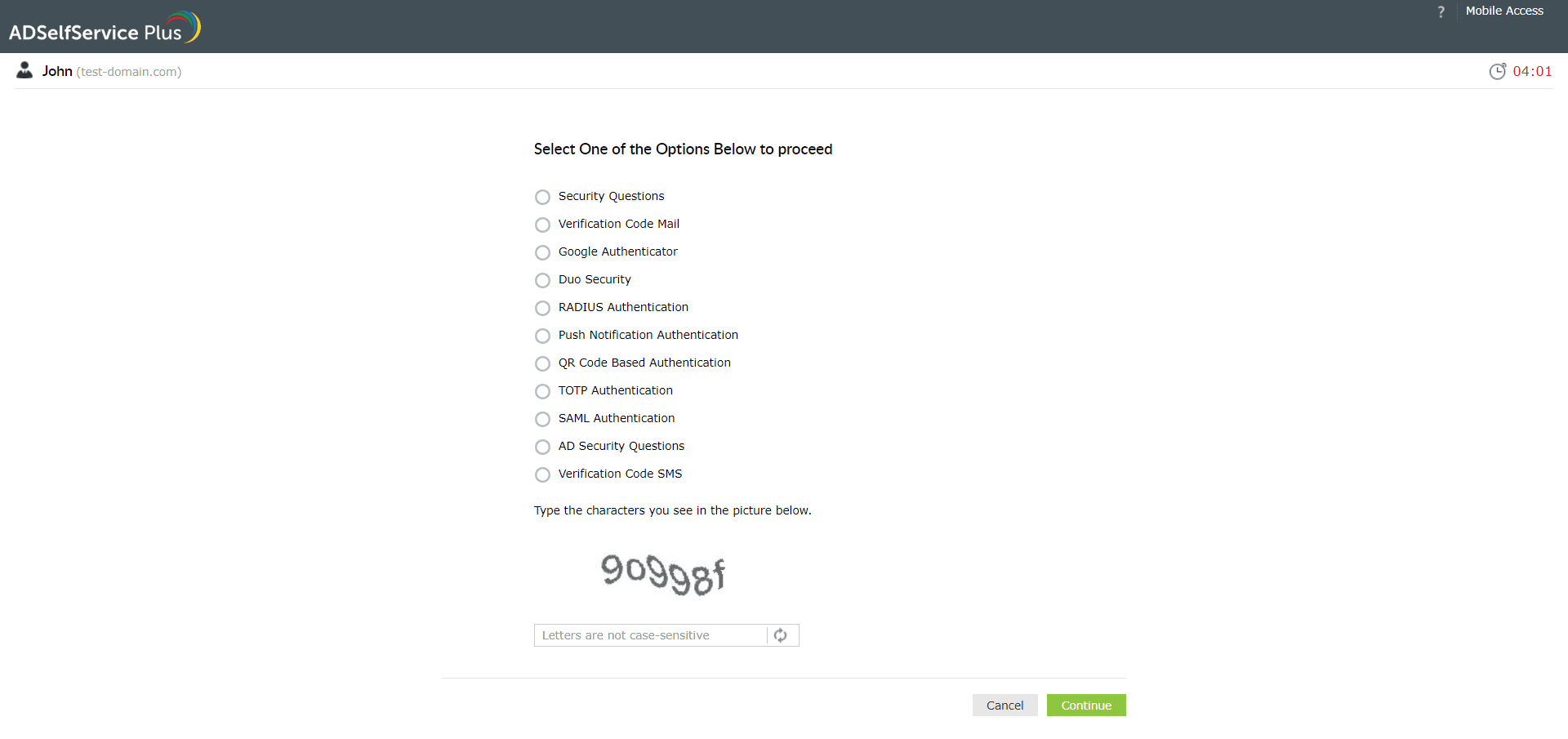
Fig 2: Selecting an enforced authentication method to verify your identity.
- Enter your new password and click Reset to finish.
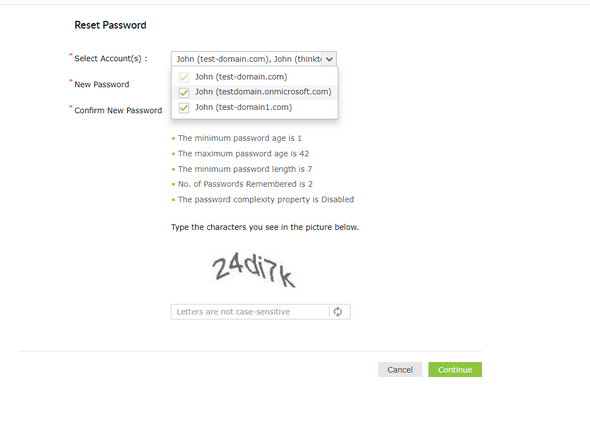
Fig 3: Entering your new password on the Reset Password screen.
Computer logon screen
You can also access the self-service portal right from the place where you realize that you have forgotten your password—the login screen on your computer.
ADSelfService Plus allows you to launch its self-service portal from any machine running Windows, macOS, or Linux.
Windows machines:
- Click the Reset Password / Unlock Account button on the login screen of your computer.
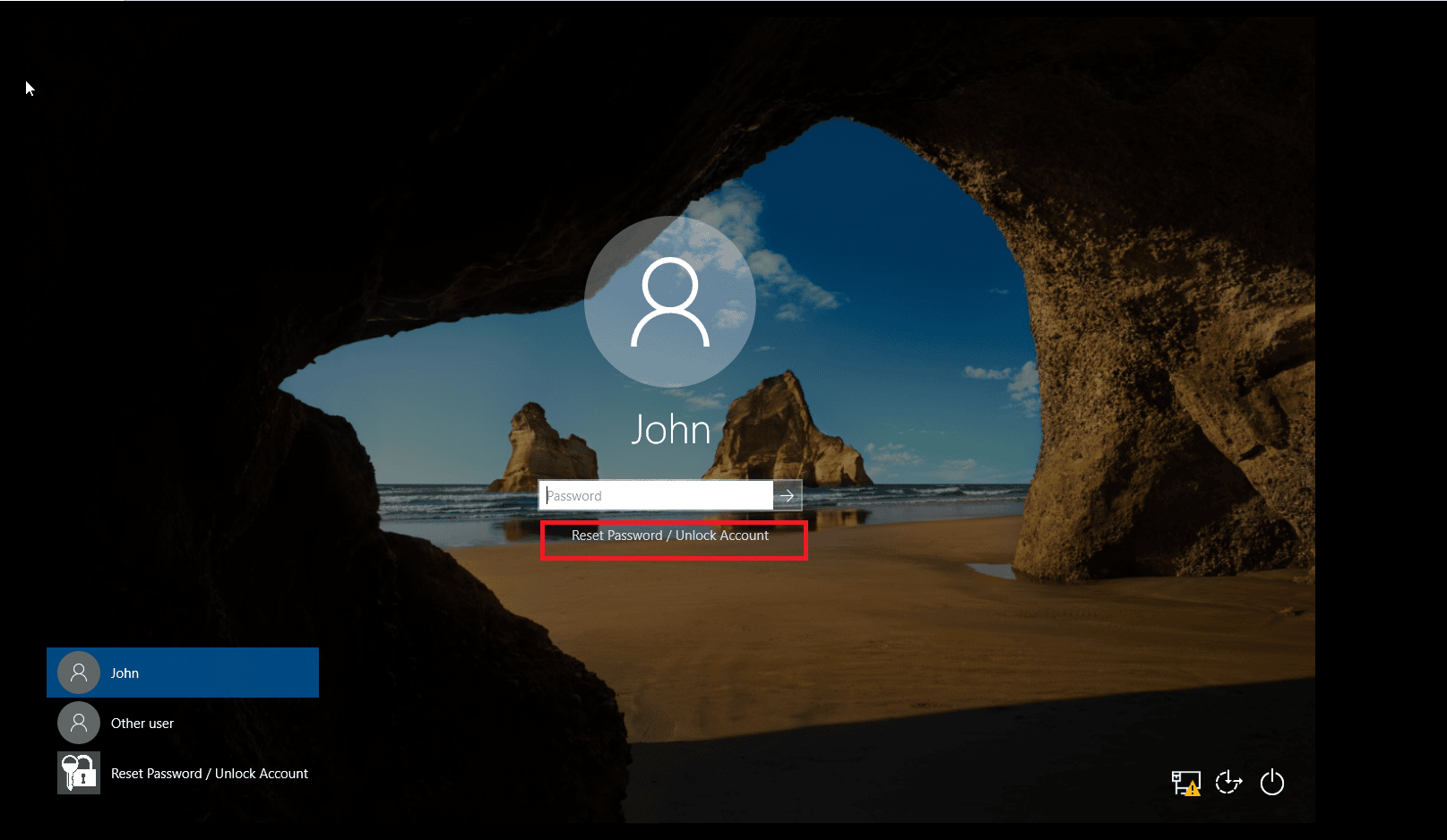
Fig 4: The Reset Password / Unlock Account button on the Windows logon screen.
- In the window that opens, click Password Reset.
- Verify your identity via the enforced multi-factor authentication techniques, and reset your password.
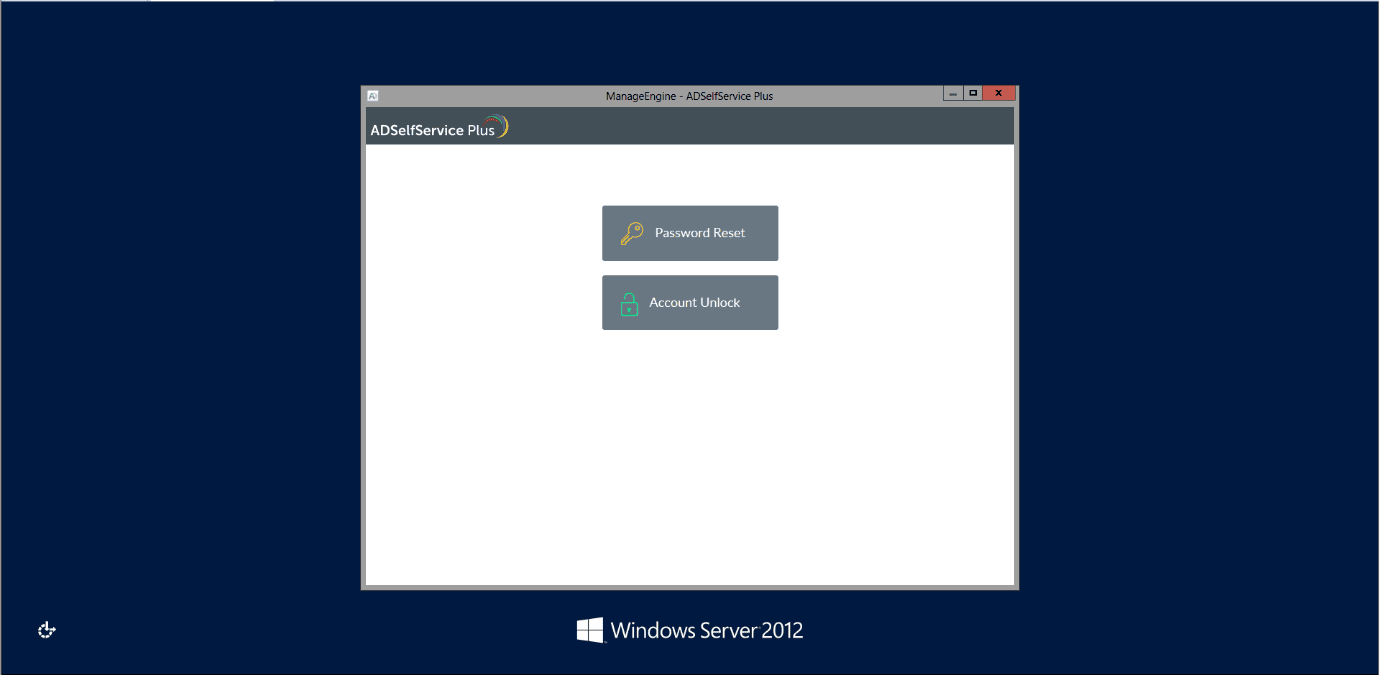
Fig 5: The Password Reset option in the ADSelfService Plus logon agent window on Windows.
Linux machines:
- Click the Reset Password / Unlock Account button.
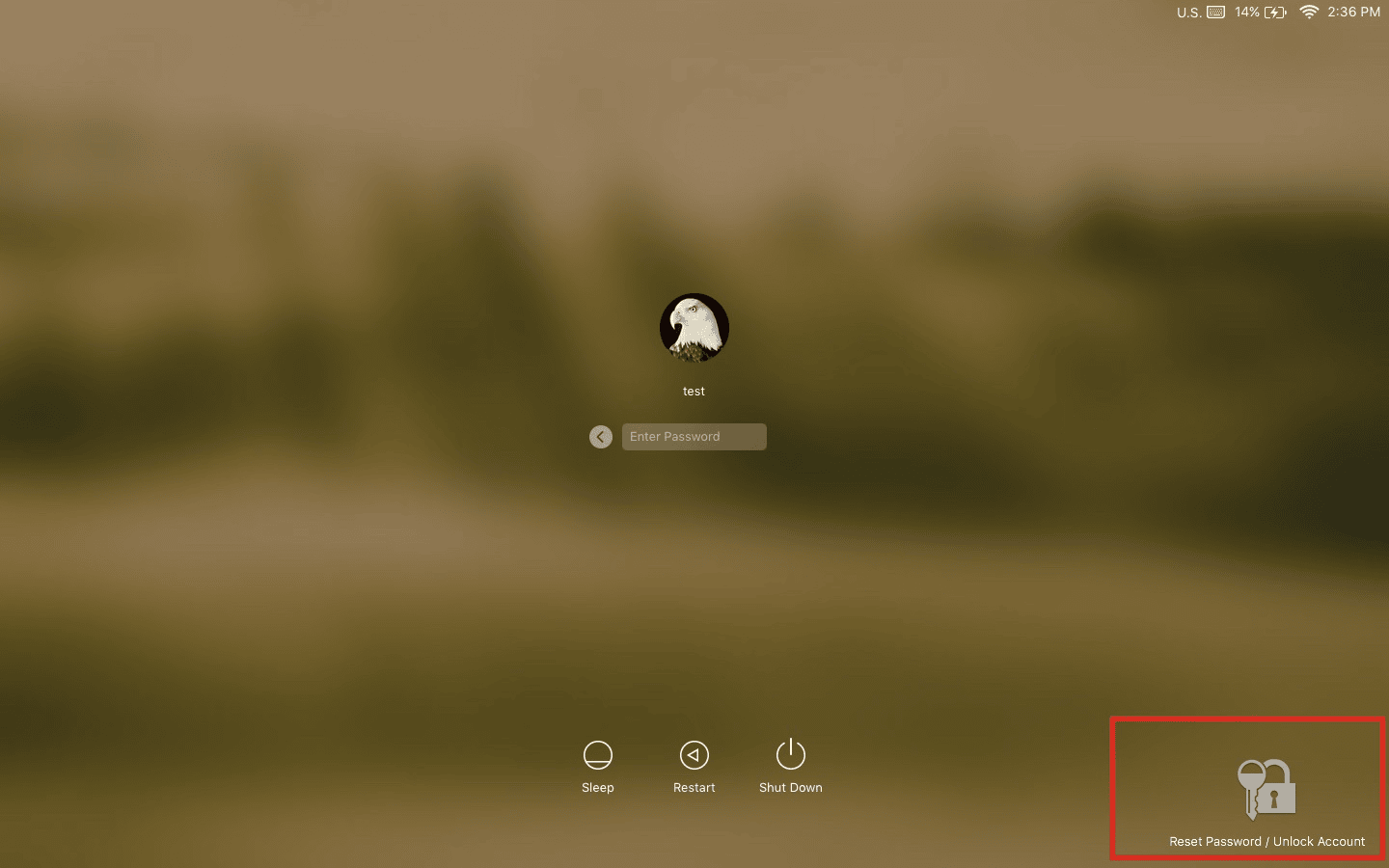
Fig 6: The Reset Password / Unlock Account button on the Linux login screen.
- Click Reset Password to configure a new password.
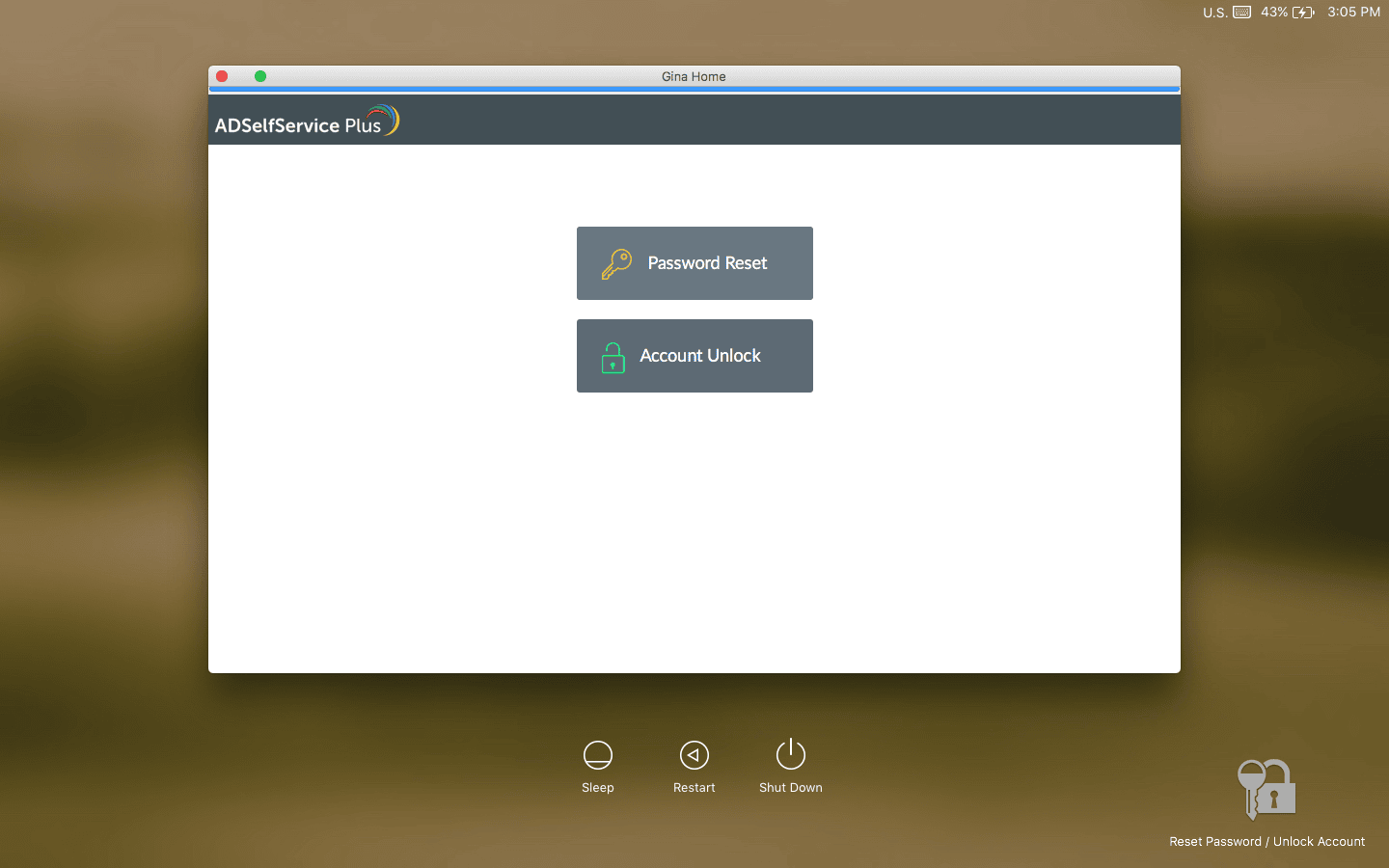
Fig 7: Selecting Password Reset on a Linux machine.
macOS machines:
- Press Control + Shift + Eject or Control + Shift + Power depending on your macOS version.
- Click the Reset Password / Unlock Account button.
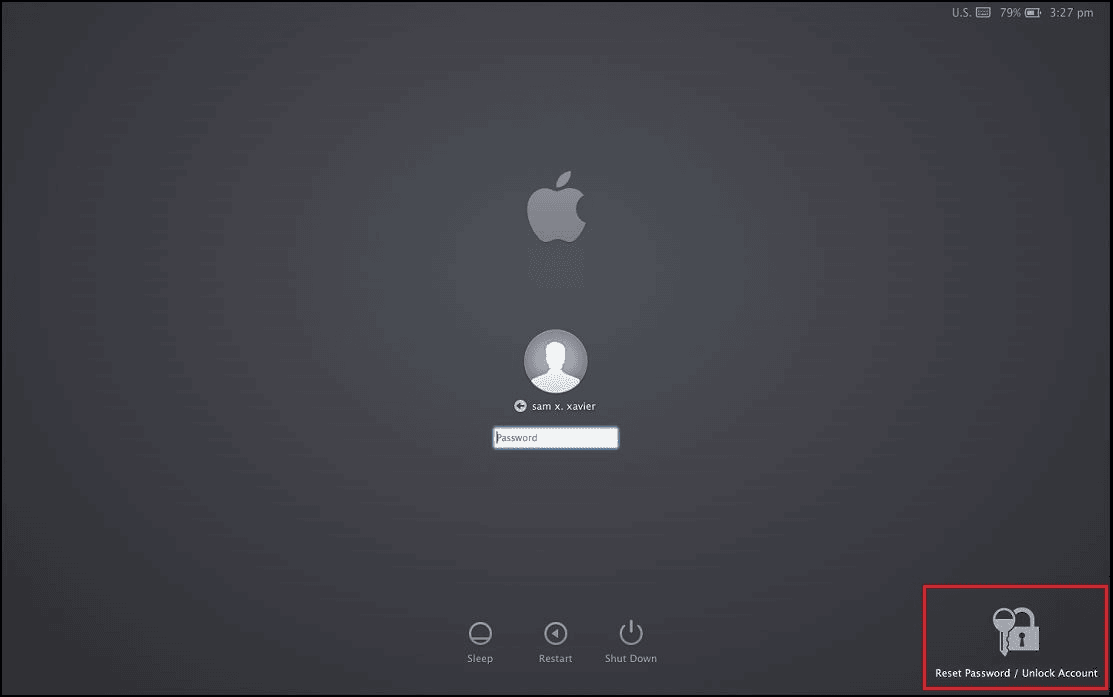
Fig 8: The Reset Password / Unlock Account button on the macOS login screen.
- Reset your forgotten password.
Mobile device
ADSelfService Plus allows you to reset your password via an Android and iOS mobile device.
- In the ADSelfService Plus mobile app, tap Password Reset.
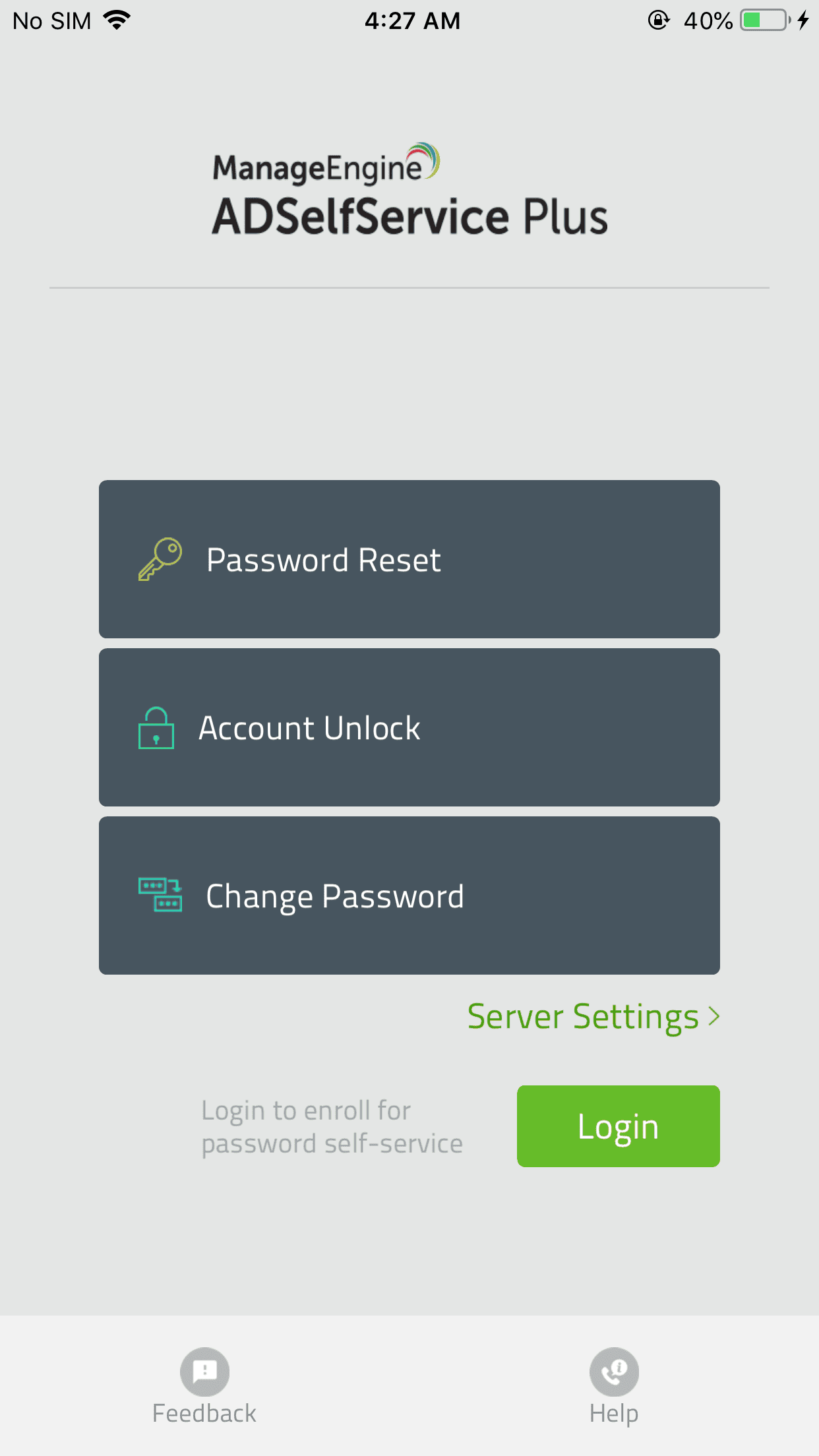
Fig 9: Tapping Password Reset in the ADSelfService Plus mobile app.
- Enter your Username. Select a directory from the drop-down, and select Next.
Note: If your administrator chose not to display the directory field, it will not be visible to you. You can simply continue to the next step.
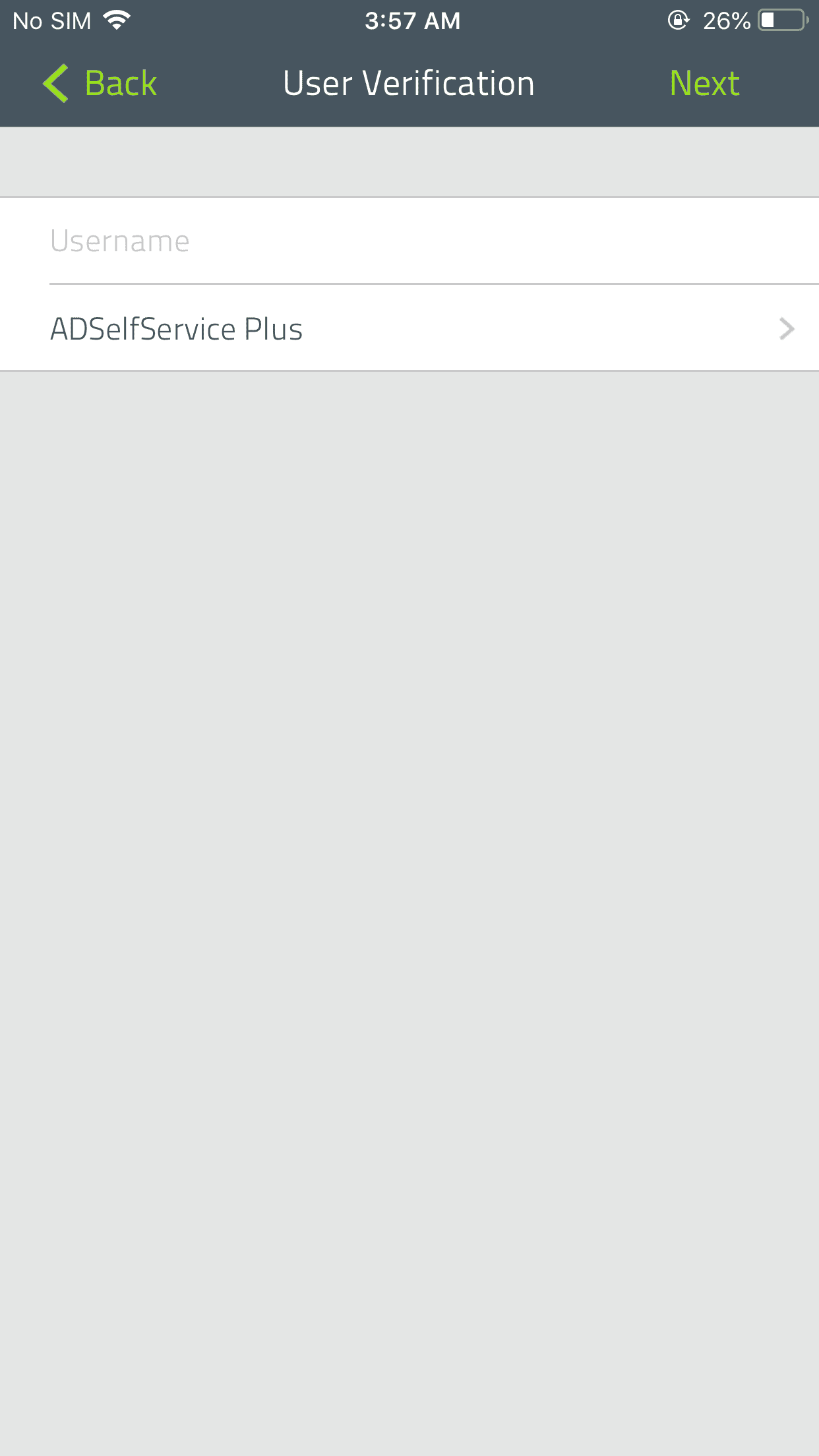
Fig 10: Entering your username in the mobile app.
- Verify your identity based on the multi-factor authentication techniques configured by your admin. Use the information you provided during enrollment to verify your identity. For more details, click here.
- Enter your new password and tap Reset to finish.
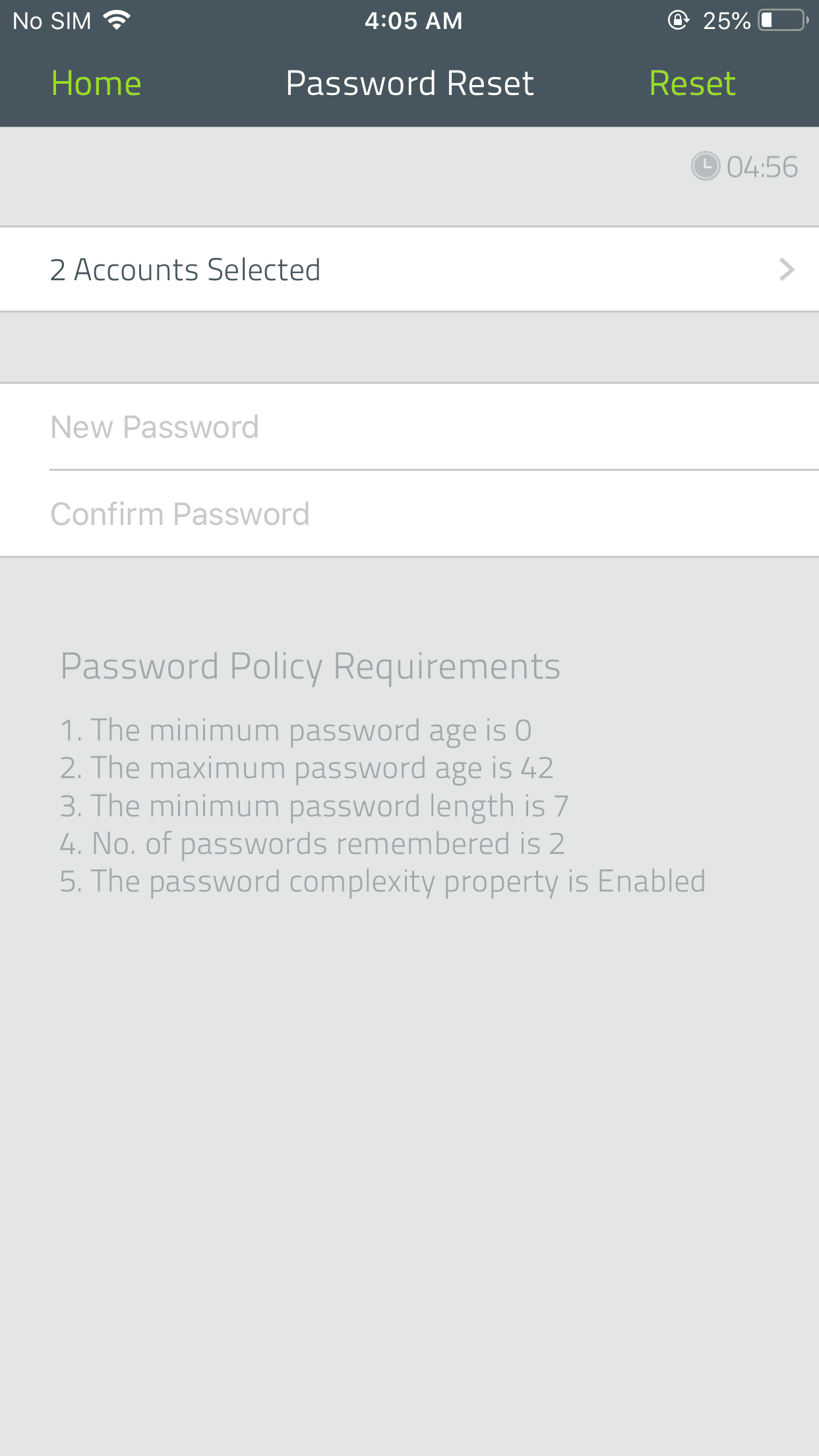
Fig 11: Entering your new password in the mobile app.
Enterprise applications
ADSelfService Plus allows you to securely reset forgotten passwords for enterprise applications. You’ll need to first link your user account with your other enterprise applications.
- To reset enterprise application passwords, including those for Microsoft 365, Google Workspace, and Salesforce, select the appropriate account from the Select Account(s) field on the Reset Password page and verify your identity. Click here to learn more about verifying your identity via enforced multi-factor authentication techniques.
- If you wish to synchronize password resets or changes across all enterprise application accounts, select All Accounts on the Reset Password page.
Fig 12: Selecting linked enterprise application accounts on the Reset Password screen.